Manage Account Access
Consent Management self-service capability allows the user to view the list of third parties to which account access is given and revoke the account access that are shared with a Third Party Provider TPP. The user can revoke the consent irrespective of the TPP status, whether active or temporarily blocked.
Menu path:
Web Channel > Side menu > Settings > Manage Account Access
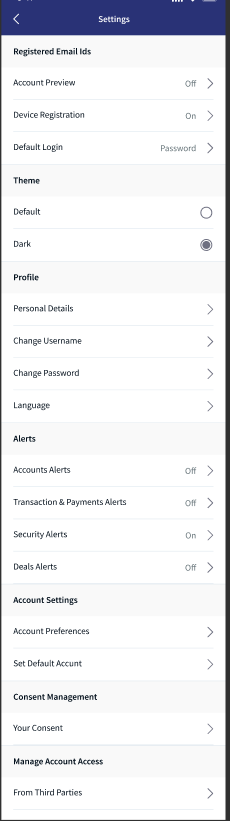
Mobile Native > Hamburger menu > Settings > Manage Account Access
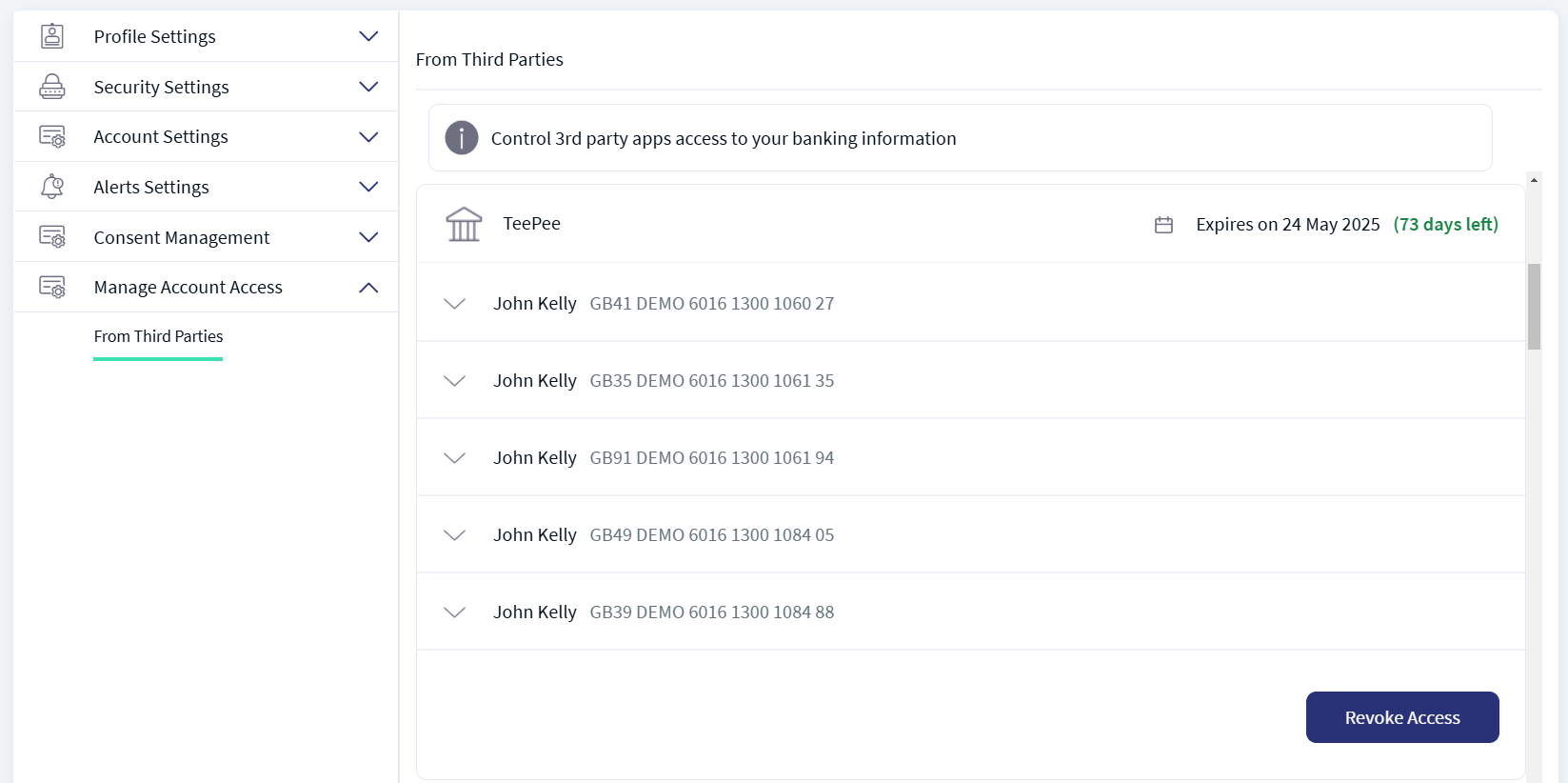
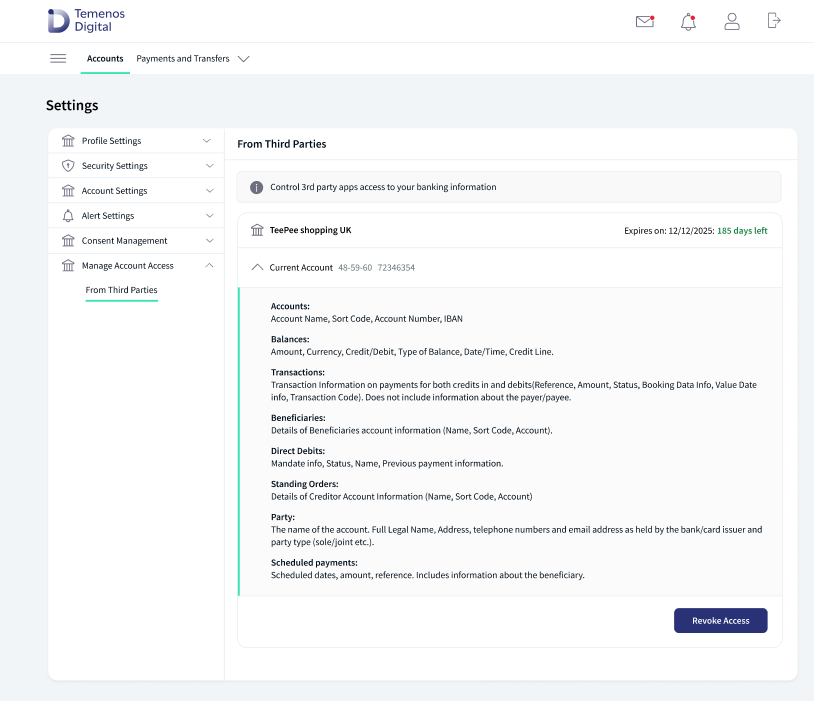
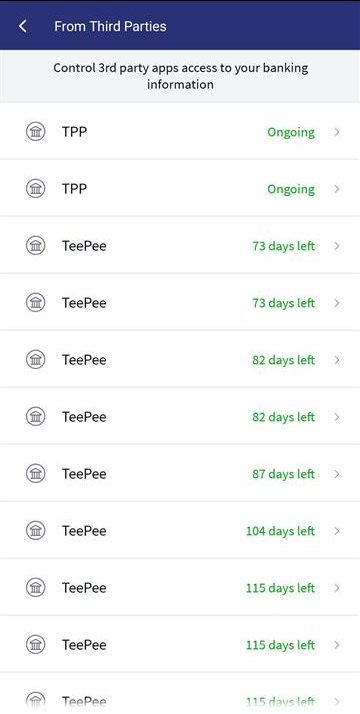
The application displays the Third Party Access screen with the list of TPPs that have access to account information of the user's account.
As part of the Berlin group and UK open banking standards, the Digital channel can list the Consents (Account information consent) in the consent dashboard, and the user will have access to revoke the active consents based on relevant permissions available in the spotlight application.
BG (Berlin Group) open banking consent dashboard
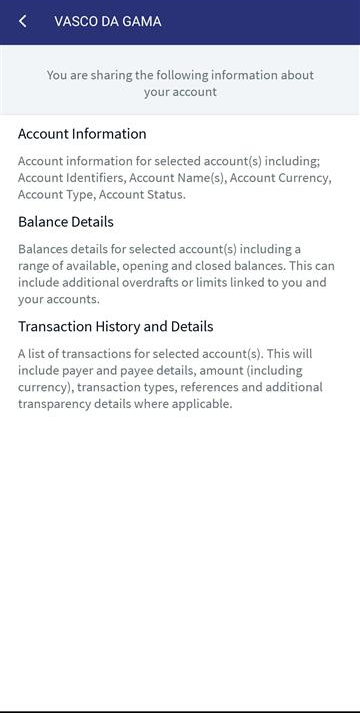
The following details are displayed on this screen:
- TPP name
- Logo
- Expiry Date
- Account Name
- IBAN
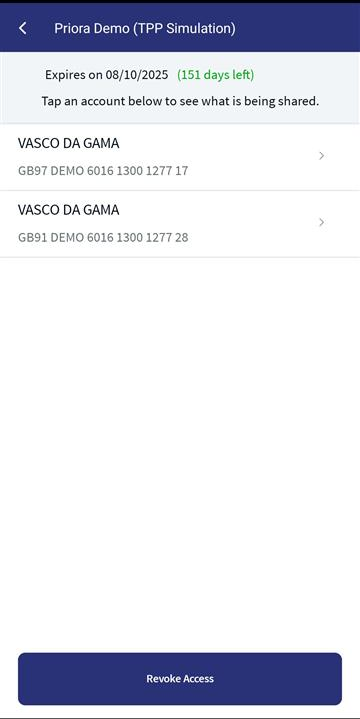
UK open banking consent dashboard
The following details are displayed on this screen:
- TPP name
- Logo
- Expiry Date
- Account Type
- Sort code and account number
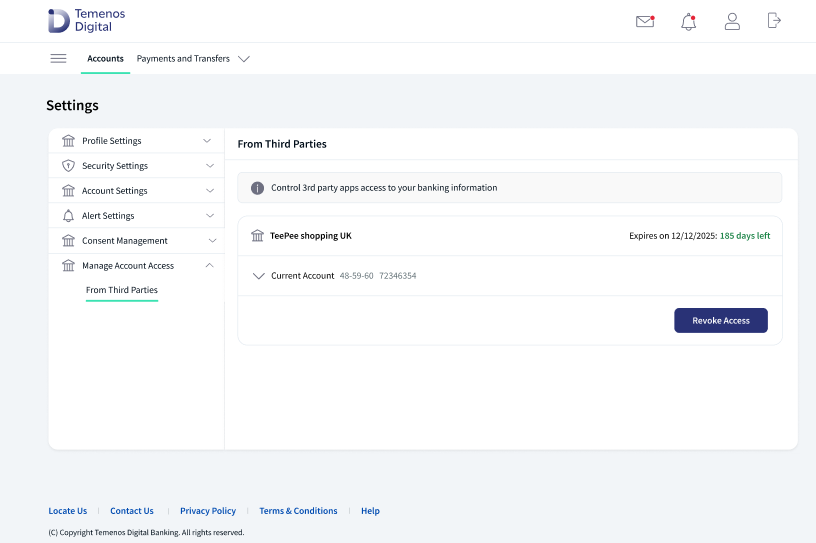
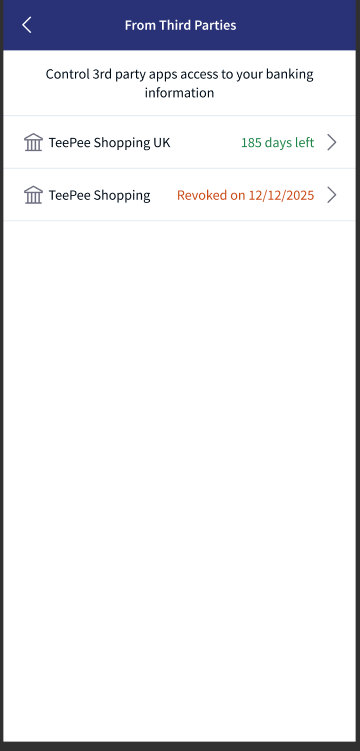
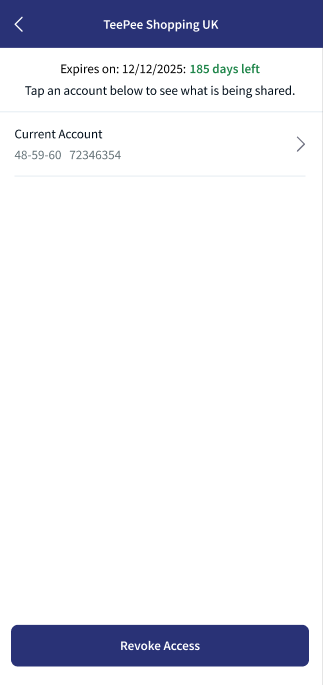
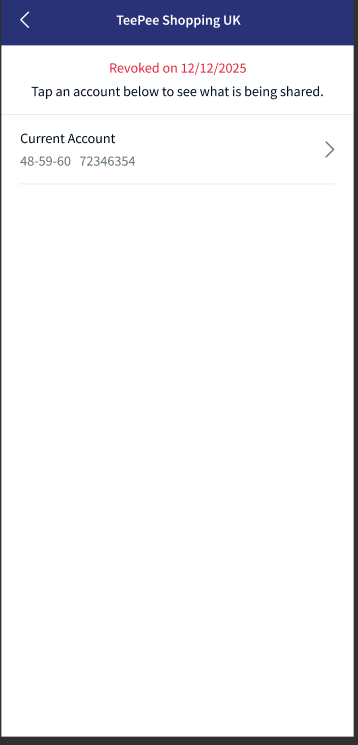
Do the following:
- Expand a shared account for more details
- Revoke Access
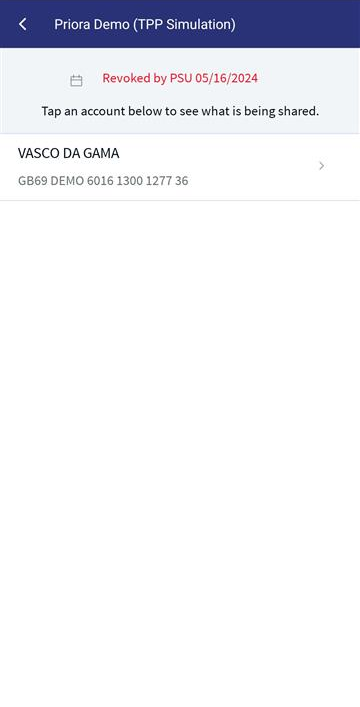
Each TPP is displayed with an expiry date. The dates are represented with different color codes that describes the status of that TPP.
- For an Active TPP, the expiry date countdown is Green.
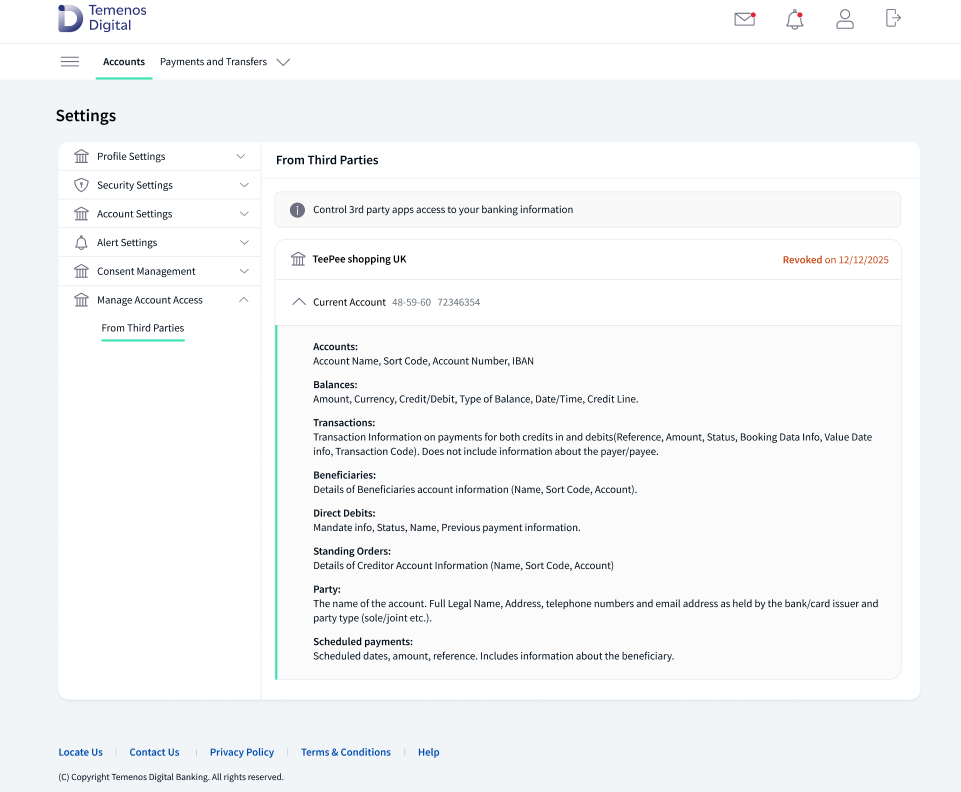
- For an expired TPP, the expiry date is in Red
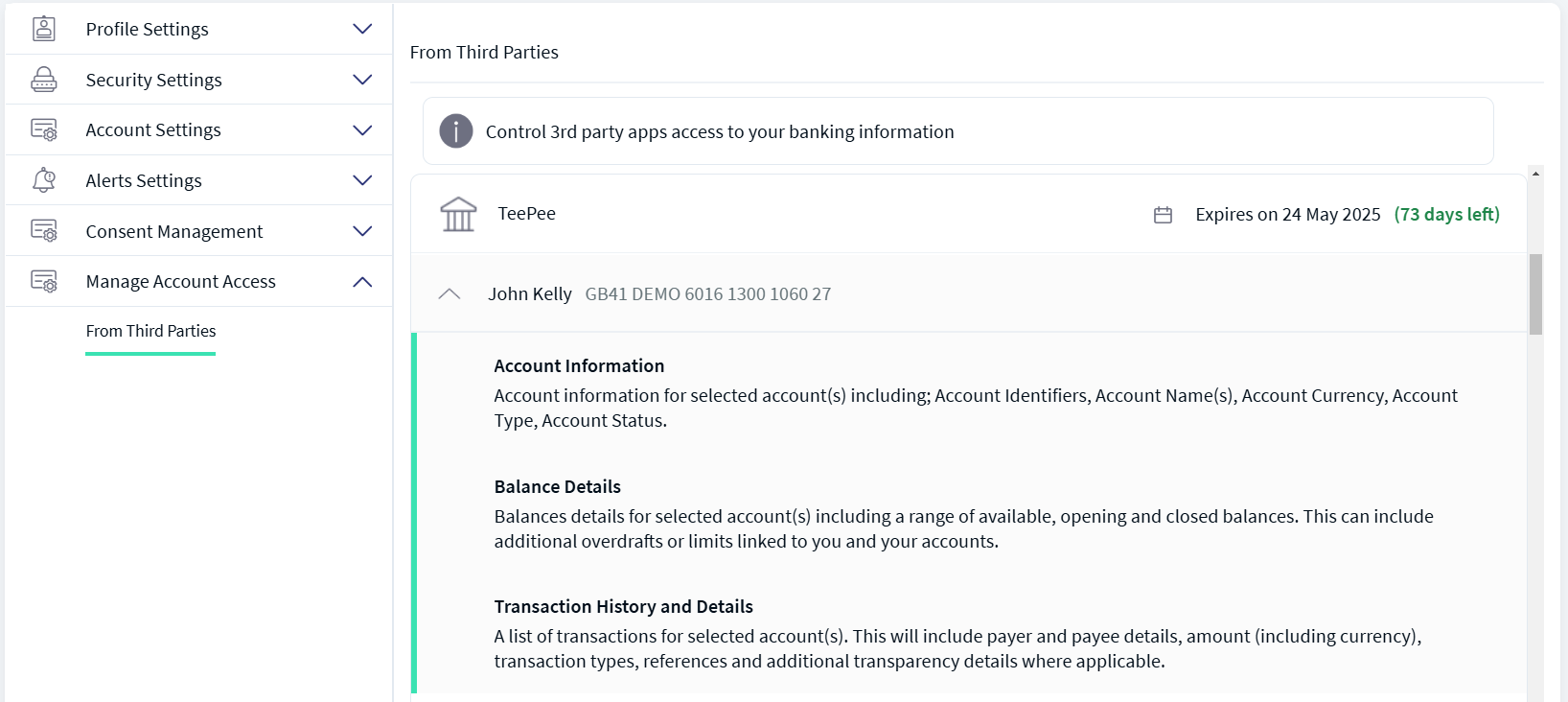
You can expand each account that is shared to TPP to view the additional details.
Click the down arrow displayed besides an account to view the details.
An expanded account for a selected TPP displays the following details:
- Account Details
- Balance Details
- Transaction Details
Revoke Access
You can revoke the consent irrespective of the TPP status, whether active or temporarily blocked.
Do the following to revoke access to a TPP.
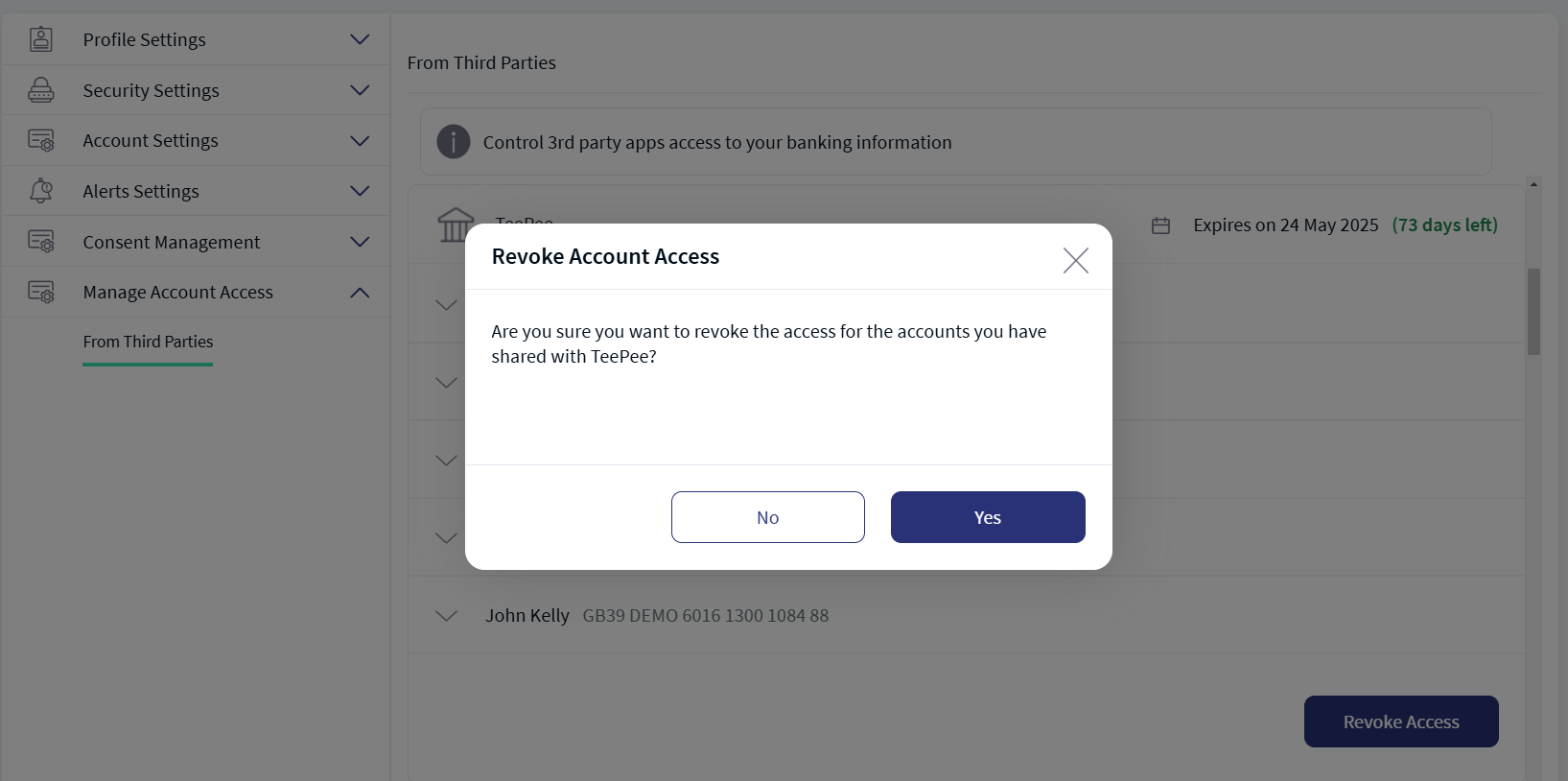
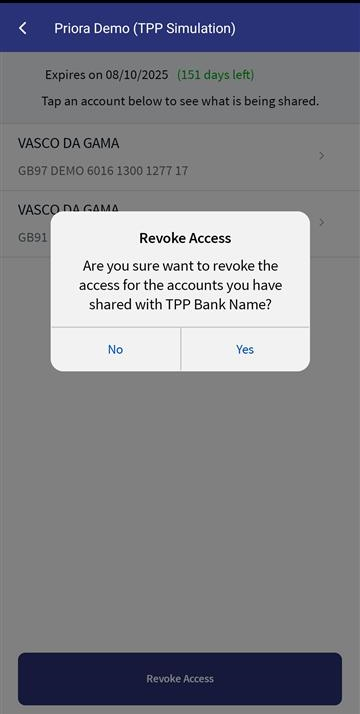
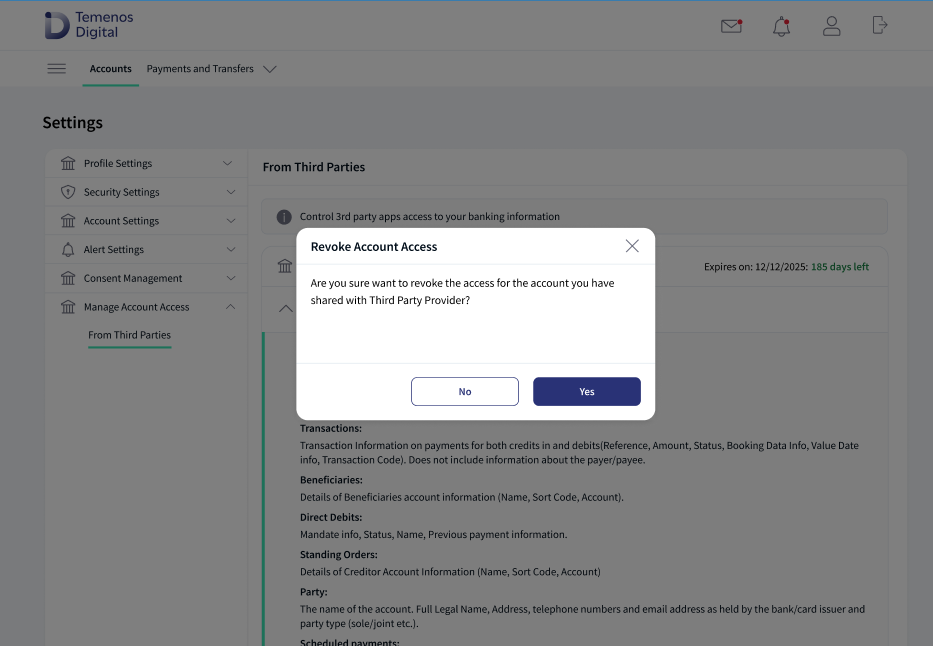
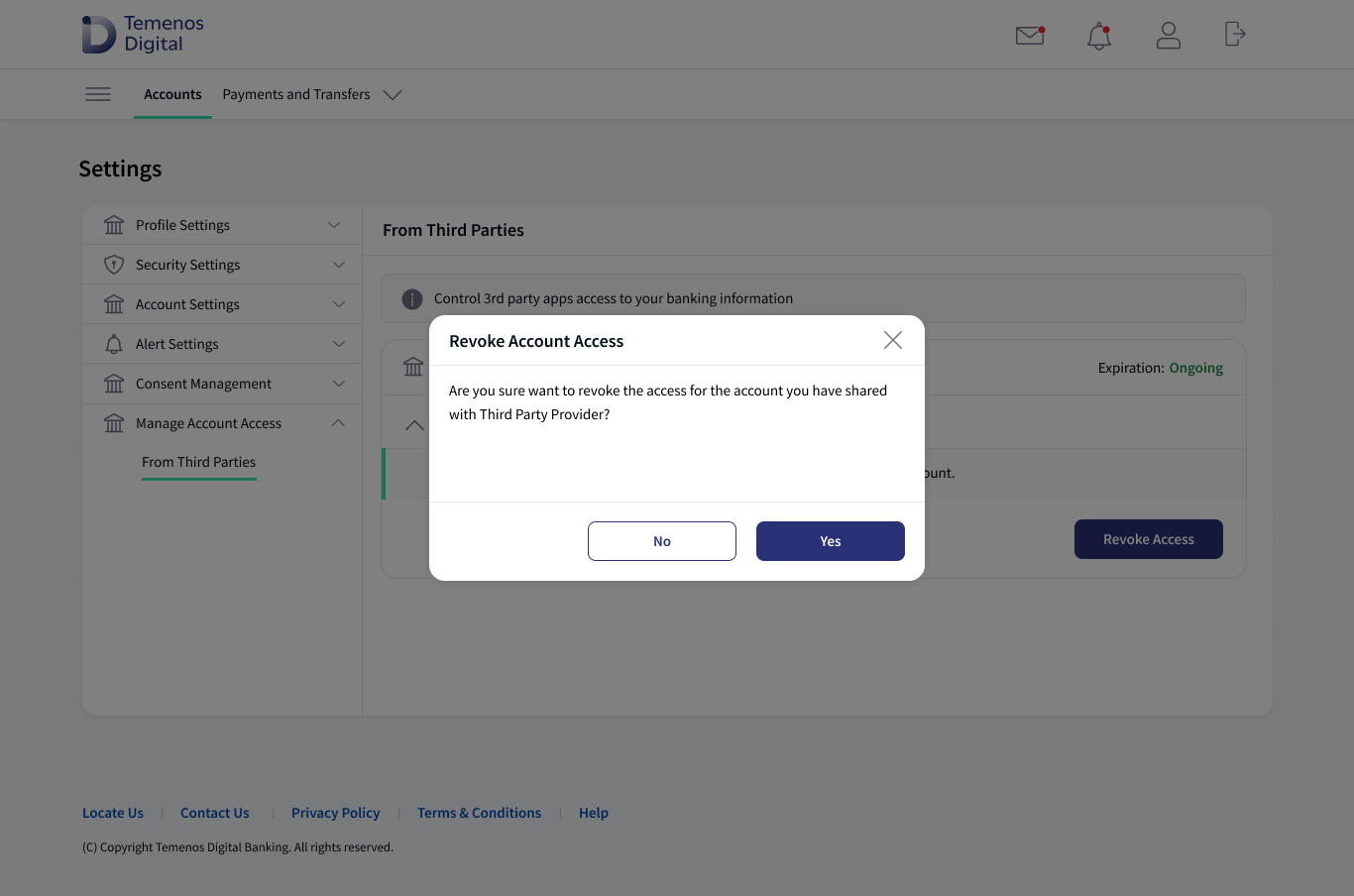
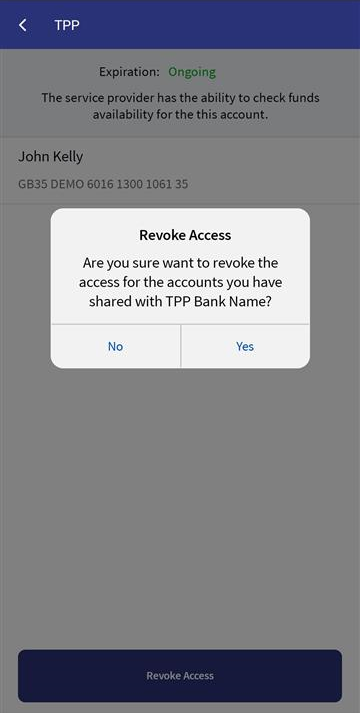
- Click Revoke Access button displayed for each TPP. A pop-up is displayed asking for a confirmation.
- Click Yes to confirm revoke access, else click No. Upon confirming, the selected TPP is removed from the list.
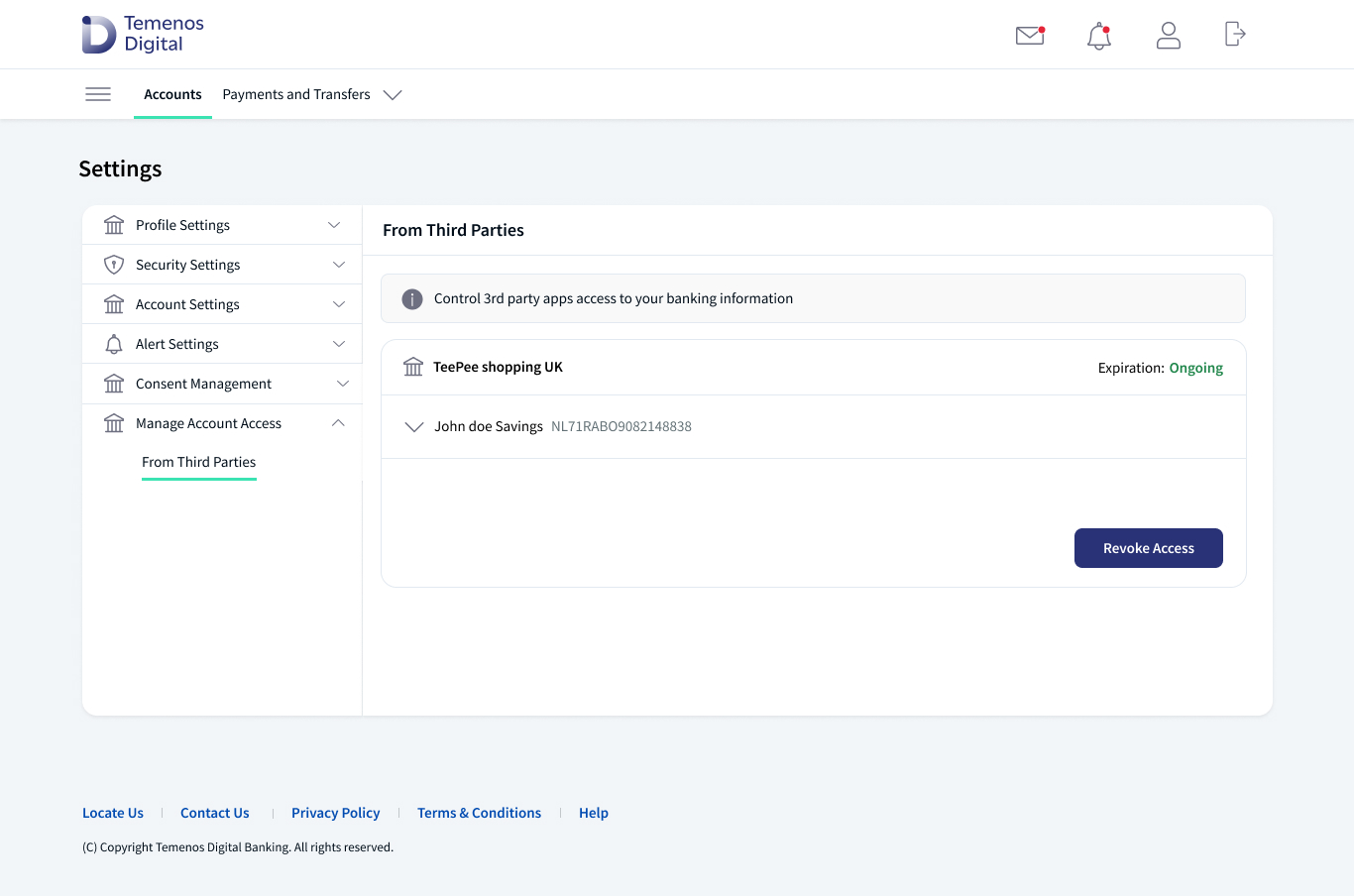
Confirmation of Funds Consent
Users can view the Berlin group confirmation of funds consents provided to Third Parties with the list of TPPs in the consent dashboard, and the user will have access to revoke the active confirmation of funds consent based on relevant permissions available in the spotlight application.
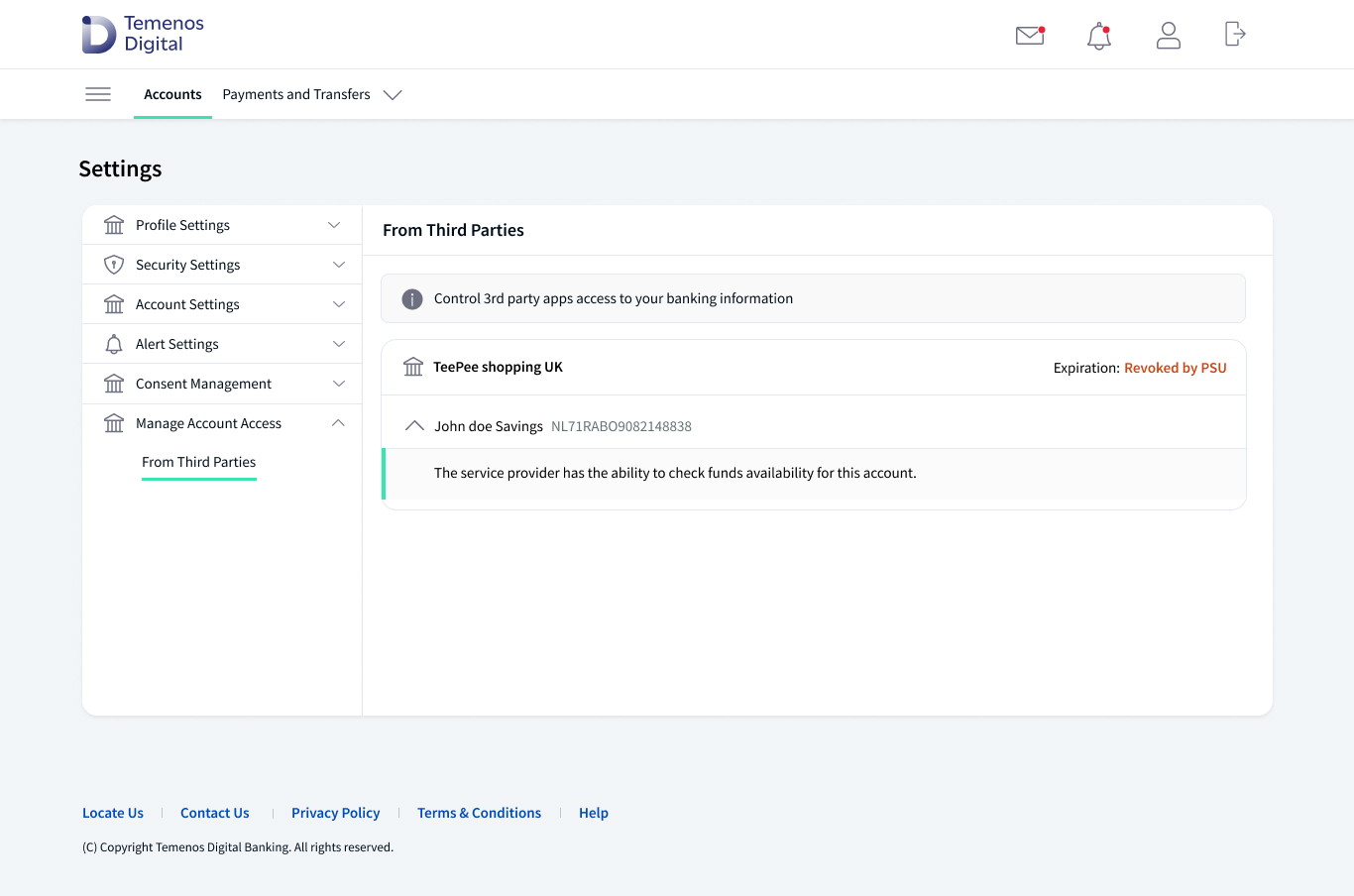
The following details are displayed on this screen:
- TPP name
- Logo
- Account Name
- Account IBAN
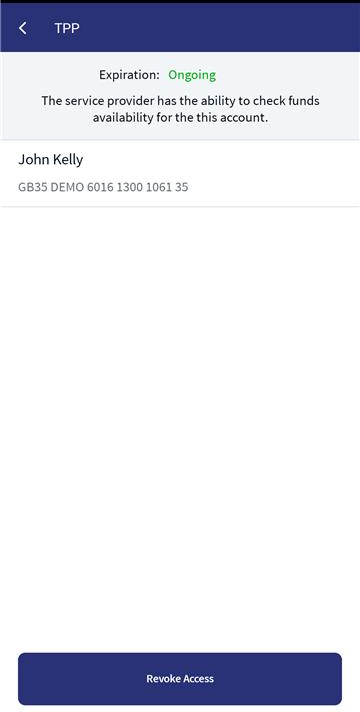
- If any account is expanded, the text will be shown for Confirmation of funds as The service provider has the ability to check funds availability for this account.
Revoke Access
The user can revoke the consent irrespective of the TPP status, whether active or temporarily blocked. Do the following to revoke access to a TPP.
- Click Revoke Access button displayed for each TPP. A pop-up is displayed asking for a confirmation.
- Click Yes to confirm revoke access, else click No. Upon confirming, the selected TPP is removed from the list.
Each TPP is displayed with the expiry date as 'Ongoing'.
- For an Active TPP, the expiry date countdown is Green.
- For an expired TPP, the expiry date is in Red.
When user expands an account, an expanded account for a selected TPP displays the following details based on the permissions selected in a TPP by the end user.
The consent dashboard API details are fetched from the back end (Transact) based on the client app property OPEN_BANKING_GEOGRAPHY.
Configuration
Spotlight Configurations
In Manage account access, to Revoke and view the account information consent in the consent dashboard permissions are defined in the spotlight application.
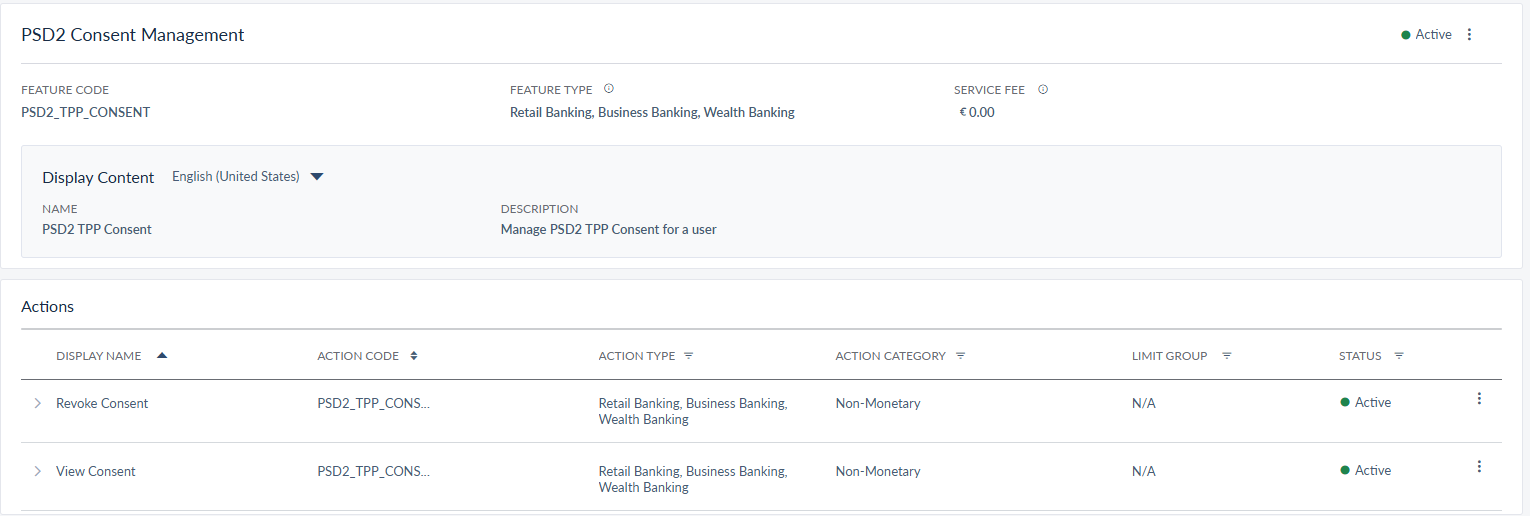
The following features and relevant actions are available in the Master data management level.
| Feature Name | Feature code | Action Name | Action Code | Description |
|---|---|---|---|---|
| PSD2 Consent Management | PSD2_TPP_CONSENT | Revoke consent | PSD2_TPP_CONSENT_REVOKE | Enable the end user to revoke any active PSD2 consents from the consent dashboard |
| PSD2 Consent Management | PSD2_TPP_CONSENT | View consent | PSD2_TPP_CONSENT_VIEW | Enable the end user to view the active/ expired consents in the consent dashboard under 'Manage account access' module |
Backend Integration - MS/Mock/Transact
Using the runtime parameter configuration at the Micro App level, an implementation team can configure the backend integration endpoint as SRMS or Mock as per customer needs for the following. The ConsentManagement Fabric MA supports the integration.
- The backend integration for all the APIs is mocked (DBX DB) or SRMS based on customer needs.
- The validations are avoided if the module is directly integrated with Transact endpoints.
- When records are created, use these options:
- Use the DBX DB table records that already exist.
- Use the Fabric Java layer to build a stubbed or JSON data response directly.
| Feature | Description | Integration | Endpoint Details |
|---|---|---|---|
| PSD2 Consent |
On the From Third Parties tab under Manage Account Access, users can view the consents they provided to third-parties to have access to data of their accounts. |
SRMS or Mock (DBX DB) |
|
APIs
For the complete list of APIs shipped as part of this feature, see Experience APIs documentation.
In this topic